

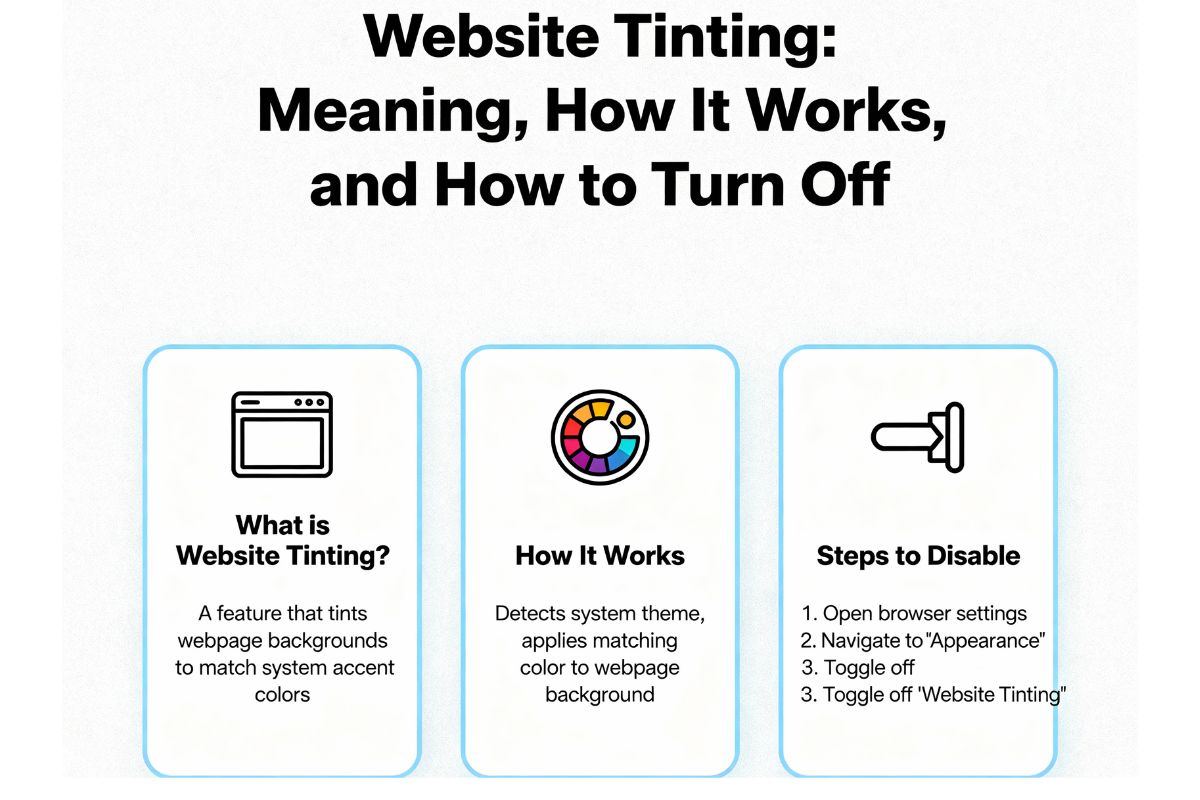
Quick Definition: Website tinting meaning is a browser feature most visible in Safari that tints the browser’s bars to match a site’s color. It makes pages feel more immersive. You can turn it off or on in Safari settings (“Show Color in Tab Bar”) and site owners can set the color with the theme-color meta tag.
What Is Website Tinting Meaning?
Website tinting meaning transforms your browsing experience by allowing websites to color your browser’s interface elements. Instead of seeing the standard gray or white toolbar, the top and bottom bars adapt to match the website’s brand color, creating a seamless, app-like experience.
PEOPLE ALSO READ : What is Website Tinting iPhone: Complete Guide (+ How to Turn It On/Off)
What You See in Safari (Top/Bottom Bars Change Color)
When website tinting meaning is enabled in Safari, the most noticeable changes occur in:
- Top toolbar: The address bar and navigation controls take on the site’s designated color
- Bottom tab bar (iOS/iPadOS): The tab switcher and navigation bar blend with the page
- Tab background (macOS): Individual tabs reflect each site’s unique color scheme
For example, visiting a site with a deep blue brand might turn your Safari bars blue, while a photography portfolio with black styling could darken the entire interface. This visual continuity makes the website feel less like a contained page and more like a dedicated application this is the essence of website tinting meaning.
How to Turn Website Tinting On or Off
If you find website tinting meaning distracting or prefer Safari’s standard appearance, you can toggle this feature across all Apple devices.
iPhone
To control website tinting on iPhone:
- Open the Settings app
- Scroll down and tap Safari
- Find “Show Color in Tab Bar”
- Toggle the switch on (green) or off (gray)
The change takes effect immediately. Open Safari and visit any site with a theme color to see website tinting meaning in action.
iPad
The steps for controlling website tinting meaning on iPad are identical to iPhone:
- Launch Settings
- Select Safari from the left sidebar
- Locate “Show Color in Tab Bar”
- Toggle on or off based on your preference
iPadOS displays tabs differently than iPhone, so you’ll notice website tinting meaning primarily in the top toolbar and tab bar when multiple tabs are open.
Mac
Desktop Safari settings for website tinting meaning live in a different location:
- Open Safari
- Click Safari in the menu bar, then Settings (or press ⌘,)
- Navigate to the Tabs section
- Check or uncheck “Show color in tab bar”
On macOS, website tinting meaning affects the compact tab bar. When enabled, each tab’s background reflects its site’s theme color, making it easier to identify tabs at a glance.
If the Toggle Is Missing (Version Notes)
Can’t find the setting for website tinting meaning? A few possibilities:
- Outdated iOS/iPadOS: Website tinting meaning arrived in iOS 15. Update to iOS 15 or later through Settings > General > Software Update.
- Older macOS: Safari 15 (bundled with macOS Monterey) introduced website tinting meaning. Check for updates in System Preferences > Software Update.
- Label changes: Apple renamed the setting from “Allow Website Tinting” to “Show Color in Tab Bar” in iOS 16. Look for either label depending on your version.
Pros and Cons
Like any design feature, website tinting meaning has trade-offs. Understanding when it helps and when it hinders will help you decide whether to keep it enabled.
| Feature | Pros | Cons |
| Website tinting meaning ON | Immersive look, matches brand color, modern feel | Can reduce contrast on some pages; bar may be harder to see in bright light |
| Website tinting meaning OFF | Stable, neutral UI; higher predictability | Less visual integration; may feel less polished |
When Website Tinting Is Helpful
Website tinting meaning shines in several scenarios:
- Brand immersion: Shopping on a fashion site or reading a publication feels more cohesive when the browser UI disappears into the brand’s color palette
- Dark mode harmony: Sites with dark themes can extend that darkness to Safari’s bars, reducing eye strain in low light
- Visual tab management: On Mac, colored tabs make it easier to distinguish between multiple open sites at a glance
- Progressive Web Apps (PWAs): Apps installed to your home screen feel more native when the status bar matches the app’s design
When to Turn Off Website Tinting
Consider disabling website tinting meaning if:
- Readability suffers: Some sites choose colors that make Safari’s text or icons hard to read against the tinted background
- Bright environment: In strong sunlight, a tinted bar can reduce contrast and make navigation buttons difficult to see
- Professional context: You prefer a consistent, predictable browser appearance during work or presentations
- Accessibility concerns: You have visual sensitivities or find the color changes distracting or disorienting
For Website Owners: Set Your Site’s Website Tinting Meaning
As a developer or site owner, you control what color Safari (and other browsers) use for website tinting meaning. This requires adding a simple meta tag to your HTML.
Basic Meta Theme-Color (HTML)
Insert this line in your page’s <head> section to define website tinting meaning:
<meta name=”theme-color” content=”#2255FF”>
Replace #2255FF with your brand’s primary color in hexadecimal format. This single line tells Safari, Chrome, and other supporting browsers to tint their UI elements accordingly this is how you implement website tinting meaning.
Best practices for website tinting :
- Use a color that contrasts well with white text (for light colors) or dark text (for dark colors)
- Test on actual devices in various lighting conditions
- Consider accessibility guidelines (WCAG AA requires 4.5:1 contrast for normal text)
Dark Mode with Media Queries
Modern websites adapt to user preferences. Provide separate theme colors for comprehensive website tinting meaning:
<meta name=”theme-color” media=”(prefers-color-scheme: light)” content=”#FFFFFF”>
<meta name=”theme-color” media=”(prefers-color-scheme: dark)” content=”#0B0B0B”>
When a user enables dark mode in their system settings, Safari automatically switches to the dark theme color. This prevents a jarring white browser bar on an otherwise dark website.
PWA Status Bar Notes (iOS)
Progressive Web Apps installed to the iOS home screen have additional control over website tinting:
<meta name=”apple-mobile-web-app-status-bar-style” content=”black-translucent”>
Valid values are:
- default: Black text and icons on white background
- black: White text and icons on black background
- black-translucent: White text/icons with translucent background (content extends behind status bar)
For Android PWAs, configure the theme in your manifest.json:
{
“theme_color”: “#2255FF”,
“background_color”: “#FFFFFF”
}
The theme_color affects the browser UI (website tinting meaning), while background_color displays during the app’s initial load.
Test on iPhone and Android
Website tinting rendering varies by platform:
- Safari (iOS/iPadOS/macOS): Applies theme color to tab bar, address bar, and individual tabs
- Chrome (Android): Colors the address bar and system status bar
- Chrome (desktop): Minimal visible effect, though the API is supported
- Firefox (Android): Supports theme-color in the address bar
- Edge (Android): Similar behavior to Chrome
Always test your chosen color on real devices. What looks great on desktop might have poor contrast on mobile in bright sunlight.
Safari vs Chrome vs Firefox: Across Browsers
Website tinting meaning implementation differs across browsers and operating systems:
| Browser | Platform | Behavior |
| Safari | iOS/iPadOS | Top bar, bottom tab bar, full integration |
| Safari | macOS | Tab bar backgrounds, title bar |
| Chrome | Android | Address bar and system status bar |
| Chrome | Desktop | Minimal UI effect (mostly internal) |
| Firefox | Android | Address bar when theme-color is set |
| Firefox | Desktop | No visible tinting effect |
| Edge | Android | Address bar (Chromium-based behavior) |
iOS-specific note: All browsers on iOS and iPadOS use WebKit (Apple’s browser engine), so Chrome, Firefox, and Edge on iOS behave similarly to Safari regarding website tinting and theme color support.
Fix It: Common Issues and Quick Checks
Problem: Website tinting isn’t working on my iPhone
Solutions:
✓ Update to iOS 15 or later
✓ Go to Settings > Safari and enable “Show Color in Tab Bar”
✓ Verify the website includes <meta name=”theme-color”> in its HTML
✓ Restart Safari completely (swipe up to close, then reopen)
Problem: The tinted bar is too dark/light to see icons
Solutions:
✓ Turn off website tinting meaning in Safari settings
✓ Contact the site owner to suggest a higher-contrast color
✓ Use Safari’s Reader Mode (aA button in address bar) to bypass theme colors
Problem: Theme color works on some pages but not others
Solutions:
✓ Each page needs its own <meta name=”theme-color”> tag check your template
✓ Ensure the tag is in <head>, not <body>
✓ Validate your hex color code (should start with # and contain 6 characters)
Problem: My theme-color shows on Android Chrome but not Safari
Solutions:
✓ Confirm Safari’s website tinting meaning toggle is enabled
✓ Test on iOS 15+ (earlier versions don’t support this feature)
✓ Clear Safari cache: Settings > Safari > Clear History and Website Data
Problem: PWA doesn’t show the right color when installed
Solutions:
✓ Check both <meta name=”theme-color”> and manifest.json “theme_color”
✓ The manifest.json value takes precedence for installed PWAs
✓ Uninstall and reinstall the PWA after updating the manifest
PEOPLE ALSO READ : Free Personal Money Management Software: Complete Guide for 2025
FAQs About
What does “Allow Website Tinting” mean in Safari?
“Allow Website Tinting” (now called “Show Color in Tab Bar”) is a Safari setting that controls website tinting meaning. It tints Safari’s bars to match a site’s color for a more immersive look. When enabled, the toolbar and tab bar adapt to each site’s designated color.
How do I turn off website tinting on iPhone?
Go to Settings > Safari and toggle “Show Color in Tab Bar” off. This disables website tinting meaning immediately, and Safari will revert to its default gray appearance.
Is “Show Color in Tab Bar” the same as website tinting ?
Yes. “Show Color in Tab Bar” (previously “Allow Website Tinting”) controls website tinting . Apple changed the wording in newer iOS versions, but both refer to the same feature.
Why did my Safari bar change color? What is website tinting meaning?
Your Safari bar changed color because the website set a theme color using the <meta name=”theme-color”> HTML tag, and your Safari has website tinting meaning enabled. This is intentional design, not a bug.
How can a website control website tinting ?
Developers control website tinting meaning by adding <meta name=”theme-color” content=”#HEXCODE”> to their page’s HTML header. Safari and other browsers then use this color to tint their interface elements.
Does Chrome support website tinting too?
Yes, Chrome implements website tinting meaning differently. Chrome on Android colors the address bar using the theme-color tag. Desktop Chrome has limited visible tinting. Safari’s website tinting meaning implementation is currently the most comprehensive.
Why is website tinting meaning not working on my phone?
Common reasons include: running iOS older than 15, having the “Show Color in Tab Bar” setting disabled, or the website not including a theme-color tag. Update iOS through Settings > General > Software Update.
Is website tinting meaning bad for accessibility?
Website tinting meaning can create accessibility issues if implemented poorly. Low-contrast color choices make browser controls hard to see, especially in bright light or for users with visual impairments. Choose high-contrast colors that meet WCAG guidelines.
How do I make Safari’s bar gray again and disable website tinting meaning?
Turn off website tinting meaning by going to Settings > Safari and disabling “Show Color in Tab Bar.” Safari will immediately revert to its standard gray toolbar appearance.
What color should I use for website tinting ?
For website tinting meaning, choose a brand color with strong contrast in light and dark modes. Test on actual devices and check WCAG contrast guidelines (4.5:1 for normal text, 3:1 for large text).